Change Planner #
Opens /planner. Live scans require sign-in; community labs are public. Leaving a map does not carry its group into the planner automatically.
 EntraMap Documentation
THE OPERATOR'S HANDBOOK / 0.6.0
From your first relationship map to a documented change review. Every control, its effect, and the evidence you need to interpret the result.
No matching chapter. Try a shorter term, an exact button label, or clear search.
EntraMap has two workspaces. Relationship map explores one object and its relationships. Change Planner compares saved group evidence across a replacement or a later verification scan. This guide covers the 0.6.0 interface, including controls that appear only after an object is selected.
Try the app before connecting a tenant: the interactive tutorial and three planner labs use synthetic data. The tutorial graph is intentionally small and some actions simulate a result. Demo labels, counts and coverage are examples, not a promise about your tenant.
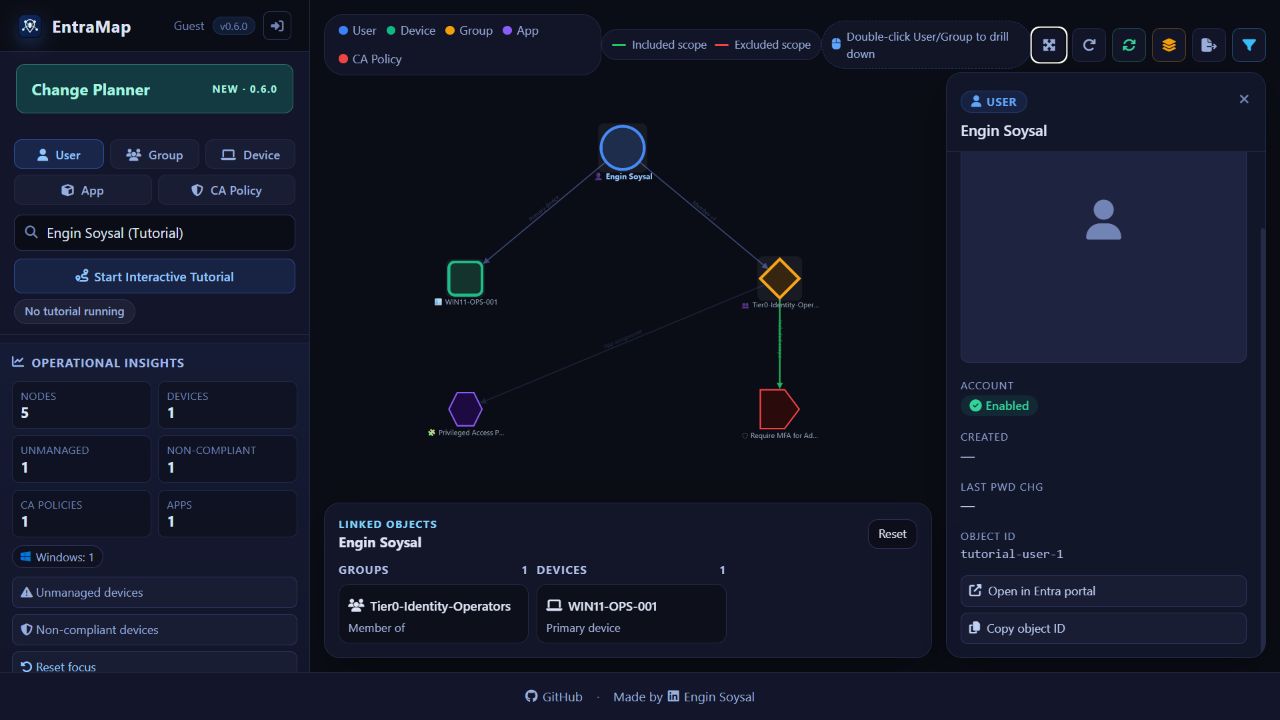
Microsoft sign-in runs in a popup. The app requests delegated Microsoft Graph scopes and operates as the signed-in account. Both granted permissions and the account’s roles, licenses and workload availability can limit visibility.
Start from the canonical public domain. A callback URL is single-use: do not bookmark or replay it. The hosting alias redirects entry pages to the configured callback domain so the session cookie survives the round trip.
On the relationship map, four idle minutes open a 60-second warning, with automatic sign-out at five idle minutes. Mouse, keyboard, scroll or touch activity resets it. This client-side warning is separate from the server session lifetime (60 minutes by default). Planner does not have the map’s idle-warning overlay.
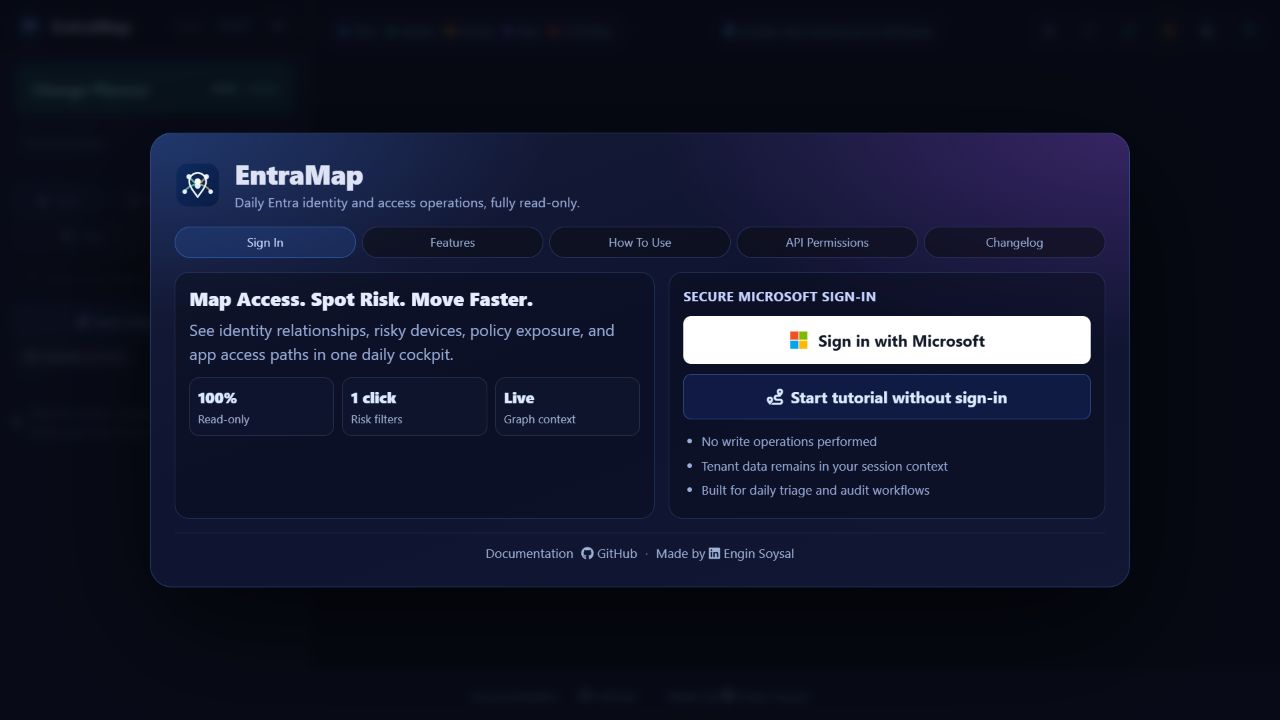
Opens the sign-in overlay when signed out. Live search remains unavailable until authentication succeeds.
Starts the Microsoft account chooser in a popup. Allow the EntraMap popup if your browser blocks it. Complete authentication yourself and wait for the original app window to update.
Shows Microsoft sign-in and the public tutorial entry.
Shows the overview of mapping, impact, exports, permissions and session features.
Shows the short six-step introduction; this handbook contains the detailed reference.
Shows all 18 requested Graph scopes. Expand a permission for its purpose; viewing a row does not grant it.
Shows the release history rendered from the repository’s LOG.md.
Ends the EntraMap session and returns to the sign-in page. Your Microsoft browser sign-in may remain active, and saved files are not deleted. To use another account, sign out and select it in a new sign-in.
Opens a confirmation dialog. Confirming clears EntraMap local/session storage and server session/token context, then signs out. This does not revoke the app’s tenant consent or delete directory objects.
Closes the confirmation without disconnecting. Clicking the backdrop also dismisses it.
Performs the disconnect. Locally saved tutorial progress, impact filter preferences and checklists on this origin are cleared. Future sign-in requests consent again.
Search is scoped to the selected type. Switching tabs clears the old query and results. Live queries start after a short typing pause (320 ms) and require at least two characters. Results are a bounded lookup, not a directory export. Selecting a result loads its graph and root details.
The App tab searches Intune mobile apps. Enterprise applications are service principals reached through user/group relationships and their own drilldown; they are a separate object type. Object IDs, application IDs and device IDs are not interchangeable.
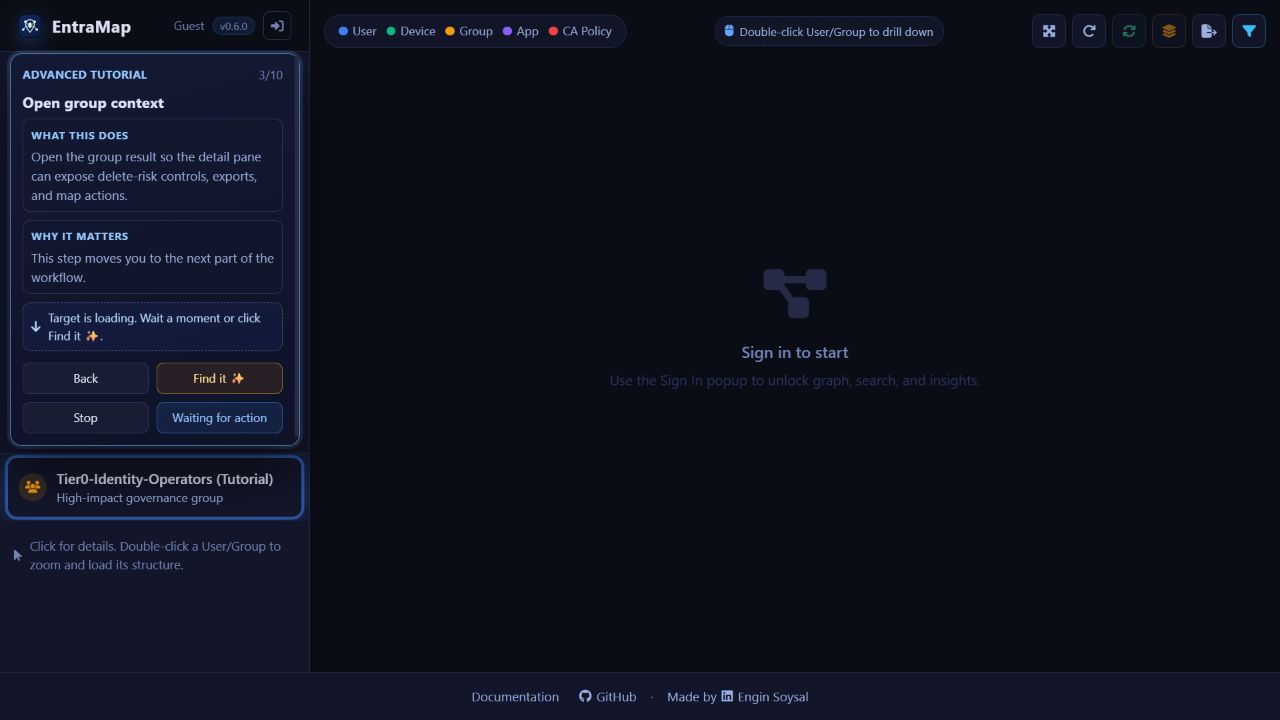
Search names or UPNs to investigate a person’s relationships.
Search group names to inspect membership, ownership and group impact.
Search device names. Its map shows registered owners and registered users.
Search Intune app names, then inspect group assignments and virtual all-users/all-devices targets.
Search Conditional Access policy names and inspect included/excluded scope and controls.
Type your query. The spinner indicates a request; empty results may mean a different object type, query, visibility or permission. Escape clears the result list and releases focus.
Select a result to replace the current map root. Inspect object type and ID in details to distinguish objects with the same name.
Nodes represent objects; labelled edges describe observed relationships. The legend identifies types. Included scope and Excluded scope distinguish Conditional Access group targeting. These are references, not a simulation of an actual sign-in.
Operational insights summarize the loaded graph: nodes, devices, explicitly unmanaged devices, explicitly non-compliant devices, CA policies and apps, plus operating-system counts. Missing device flags are not counted as explicit false values. Counts do not describe your entire tenant.
The impact map projects findings from the group impact analysis. It can show dependency resources absent from direct relationship traversal. Explain mode identifies these projected nodes; a dependency is not automatically a navigable directory object.
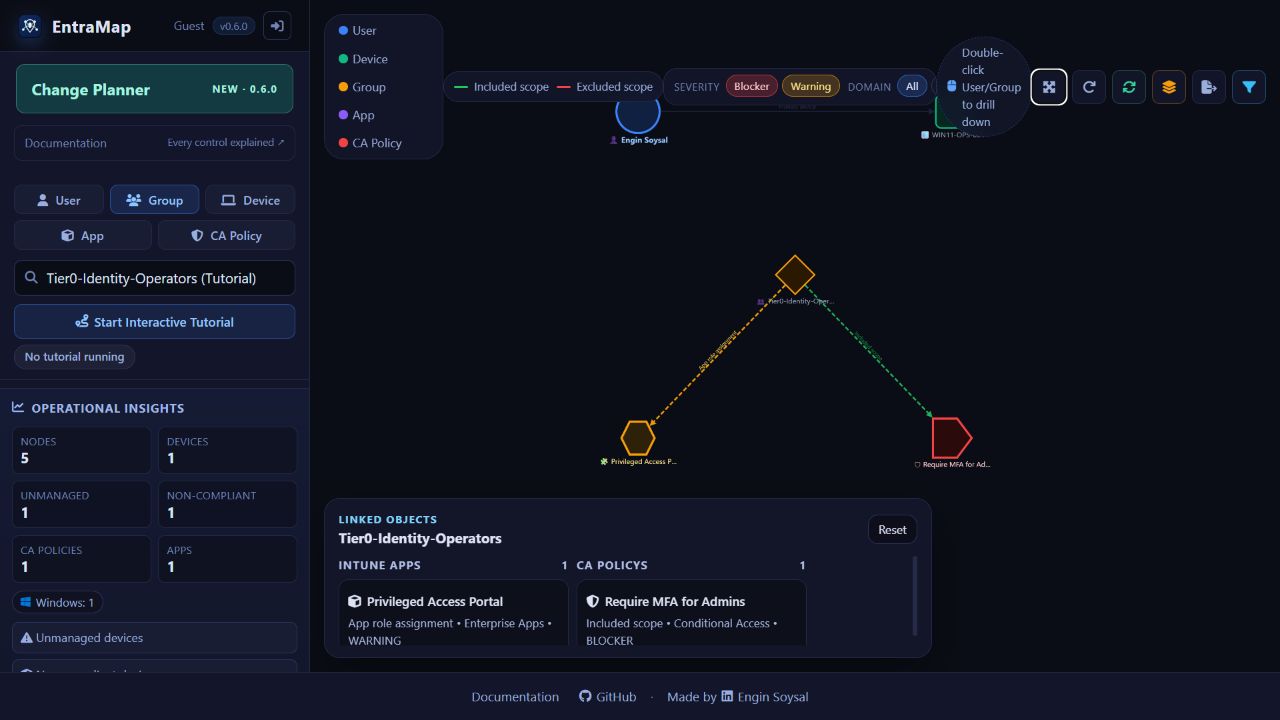
Selects the object, highlights its neighborhood, opens details and updates Linked Objects. Clicking an empty graph area clears selection focus.
Re-roots the map for a supported User, Group, Device, Intune App, Enterprise App or CA Policy. Synthetic all-users/all-devices targets and impact-only resources do not have ordinary object drilldowns.
Drag empty canvas to pan, use the mouse wheel or trackpad to zoom, and drag a node to reposition it. This changes only the view. Fit and Recalculate layout recover a readable arrangement.
The four-arrows toolbar icon fits the graph into the available viewport. It does not request fresh Graph data.
The circular-arrow layout icon recomputes node positions. It does not refresh directory data.
The refresh-arrows icon reloads the current object/context with fresh Graph reads. Available after a map is loaded. A read can still reflect Microsoft propagation delays.
The stacked-layers icon reloads the context three times with 1.8-second pauses between rounds. Refresh controls are disabled while it runs. It is still read-only and does not guarantee immediate propagation.
The file-export icon downloads the entire last loaded graph, node/edge counts and export timestamp. It is not restricted by impact display filters.
The filter icon exports Cytoscape-visible nodes/edges plus root, map mode and impact-filter context. Faded risk-focus nodes remain visible and can still be exported; this is not a redaction tool.
Focuses devices whose collected isManaged flag is false, plus connected context, and fades other objects. If none match, a message is shown.
Focuses devices whose collected isCompliant flag is false and fades other objects. Validate the device’s current posture in its management system.
Removes risk-focus fading and fits the graph again. It does not clear impact severity/domain filters.
The details pane displays properties returned for the selected object. Missing data may be omitted or shown with a placeholder; a blank property is not proof of absence. User/group photos can fall back to icons.
User: UPN, email, job title, department, company, office, city/country, mobile, account state, creation/password-change dates, last sign-in when returned, object ID. Group: description, type flags, dynamic membership rule/state and object ID.
Device: operating system/version, display name, trust type, managed/compliant flags, device ID and directory object ID. App/Enterprise App: publisher, type, description, application ID where returned and object ID. CA Policy: enabled/disabled/report-only state, included/excluded group counts, application scope, platforms, required grant controls, AND/OR operator and ID.
The Linked Objects rail lists neighbors of the selected object, grouped by type, with relationship labels and counts. It lists the currently loaded graph, not every possible tenant relationship.
The detail pane has a fixed width in this release; its internal content scrolls. Close it to reclaim graph space.
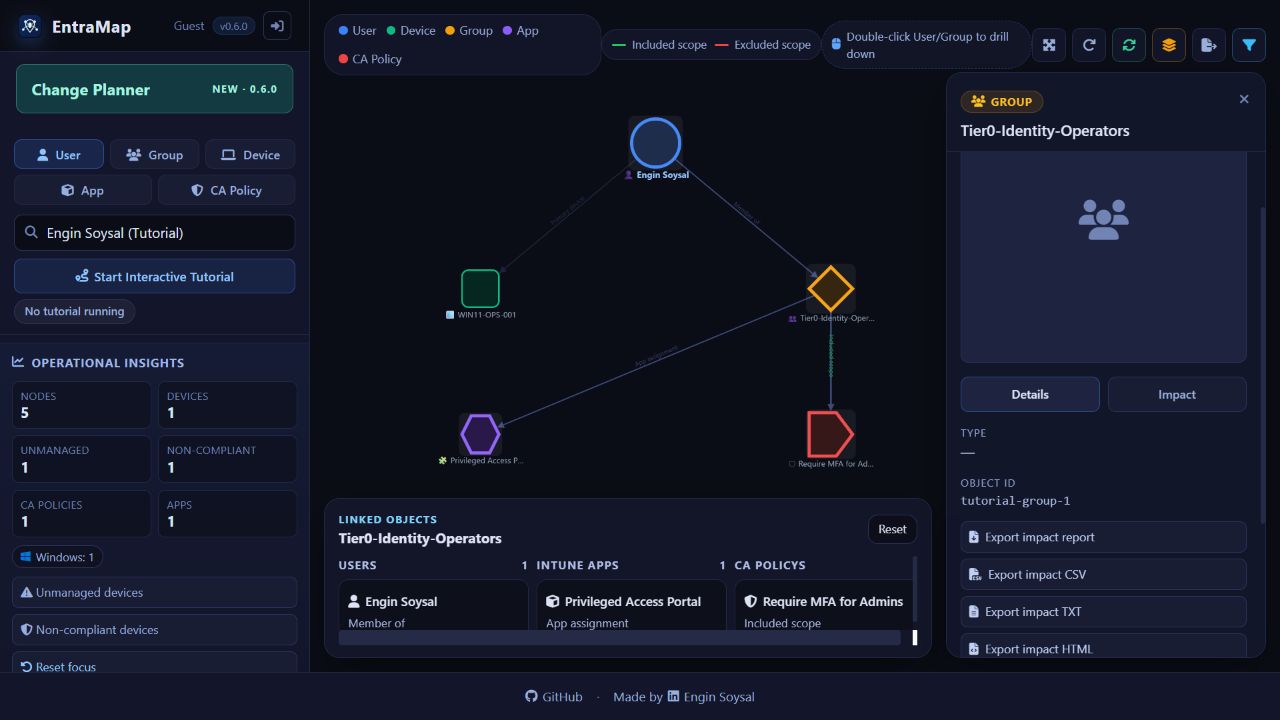
For groups, displays metadata instead of the impact analysis.
For groups, loads and displays deletion-impact evidence, coverage and remediation checklist. It does not delete the group.
Hides the detail pane so the graph has more room. Select a node to open it again.
Copies the selected object’s directory ID to the clipboard, with a success/error toast. The ID can identify sensitive tenant context. Tutorial IDs are synthetic and do not resolve in your tenant.
Opens the generated administrative deep link in a new tab for supported types (Intune objects may use Intune administration). It is shown only when a portal URL can be built. Any changes you make in the admin portal are outside EntraMap.
Selects that neighbor, opens its details and fits its local graph neighborhood. This selection differs from a double-click drilldown, which requests a new graph.
Returns selection to the root object of the currently loaded graph and resets its neighborhood focus. It does not return to an earlier map root.
Impact summarizes blockers, warnings, domains with hits, checked domains, risk score, coverage and confidence. The executive summary and top evidence are a triage aid. A “No blocking dependencies found” result applies only to the collected scope.
Risk score is capped at 100: 25 per blocker + 10 per warning + 5 per incomplete domain. Caution has a minimum score of 15. A blocker yields Blocked; warnings or incomplete domains yield Caution; otherwise the label is Review complete. This is a heuristic, not a probability.
Coverage is the percentage of domains whose collection status is ok. “Complete within scope” still means bounded API collection. Review every access limitation, including errors and scan limits. A low risk score with incomplete coverage cannot establish that deletion is safe.
Each populated domain shows up to three sample findings, an owner suggestion, remediation guidance and checklist steps. Export the evidence for the full finding list. The suggested owner is a team role, not a looked-up responsible person.
Checklist progress is stored in this browser’s local storage per group. Checking a task records your review only: it performs no Graph change and is not shared approval. After actual administrative changes, run a fresh scan or use Change Planner verification.
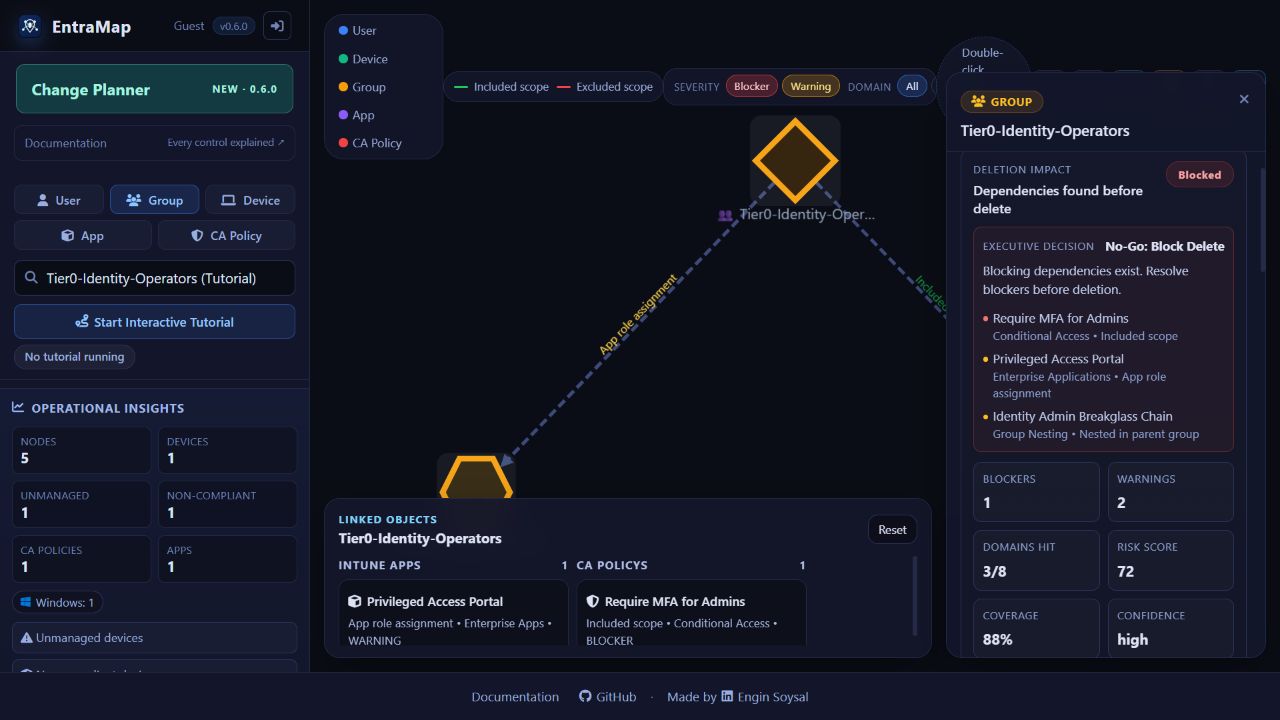
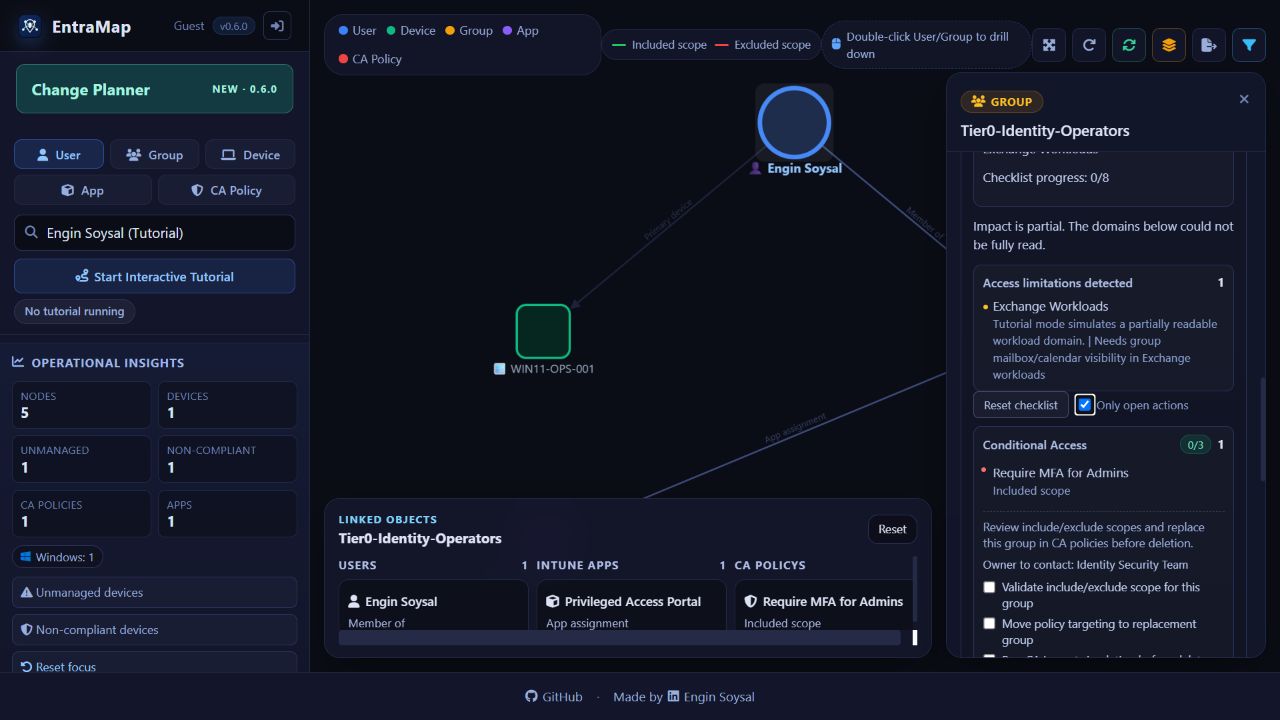
Click a sample finding to focus the matching resource in the current graph when available. A finding absent from that graph may require Load impact graph.
Marks a local review step complete and updates per-domain and overall progress. Completed checklists show “Checklist complete — verify with a fresh scan”.
Clears saved checklist progress for the selected group and unchecks its steps. It does not undo any administrative changes.
Hides completed domain cards in the checklist area. Untick it to see them again.
Loads the group’s ordinary relationship map (members, owners, scope and assignments supported by that engine).
Loads a group-rooted projection of collected impact findings, exposing severity/domain filters and Explain mode.
Downloads the group impact result as JSON. Live impact exports request fresh evidence, so their timestamp/result can differ from an earlier visible panel.
Downloads flat finding rows for spreadsheet review, including domain, status, severity and resource information. Read coverage separately; a CSV row count is not a coverage guarantee.
Downloads a plain-text group impact summary for tickets or handover.
Downloads a formatted, human-readable impact report suitable for review and browser printing. It is different from a Planner change dossier.
These controls appear only on an impact graph. The active domain, severity choices and Explain setting are saved in browser local storage. A domain filter that does not exist in the next loaded graph is reset to All. Filters change presentation, not scan coverage or the underlying report.
Toggles blocker findings in the impact graph. At least one severity remains selected.
Toggles warning findings in the impact graph. Hidden findings still exist in full reports.
Shows findings from all available domains, subject to the severity filters.
Shows findings for the chosen domain. Available chips depend on findings in this graph.
Toggles projection explanations in node details: domain, severity, impact type and the fact that the node came from Group Impact.
Sets all domains, both severities and Explain on for a broad review view. It does not create a change ticket or approve anything.
Selects Conditional Access when present, otherwise Directory Roles when present, otherwise all domains; enables blockers only and Explain.
Restores all domains, blocker + warning and Explain on, and saves that preference.
Map Compare compares two projections of one group: the standard relationship graph and impact graph. It is not a historical comparison and does not compare source and replacement groups. Use Change Planner for those questions.
Metrics show node/edge totals, overlaps and standard-only/impact-only edges. Three lists show standard-only nodes, impact-only nodes and overlapping nodes. Top relation deltas summarize differences in edge labels. The “Ready” badge means comparison output is ready, not that a group is safe to remove.
The tutorial screenshot uses the simplified demo comparison. Live comparisons additionally show metrics and Type, Search and Sort controls described below.
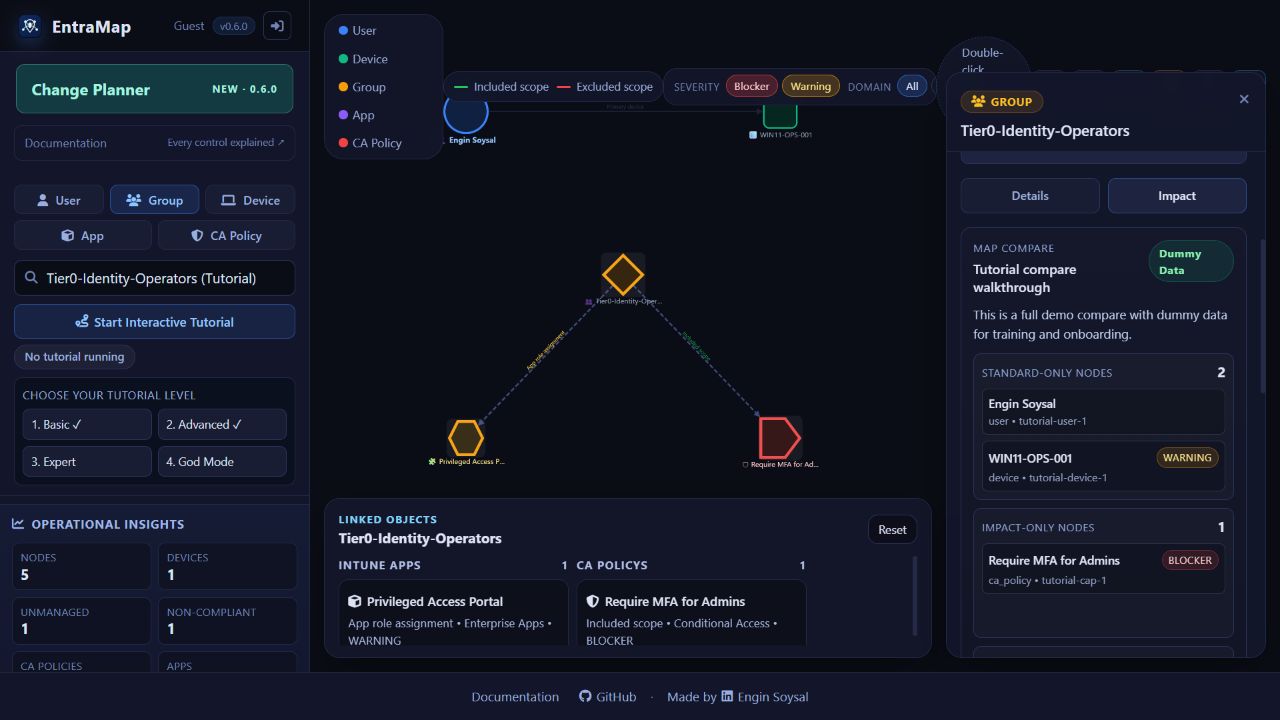
Builds both map projections for the selected group and displays their differences in the detail panel.
Filters the three node lists to an object type. Metrics remain whole-map totals.
Filters nodes by label, ID or type text.
Orders node lists by descending impact score (then label) or Label A–Z.
Switches back from comparison to the standard group graph.
Switches from comparison to the projected impact graph.
Downloads map totals, filters, full and filtered node sets and top edge deltas. This file is not a Planner snapshot.
Downloads spreadsheet rows from the filtered comparison lists with section, label, ID, type, severity, score and domain context.
Each domain carries its own collection status and evidence. The planner compares resource references and selected semantic fields: impact, appRoleId, assignment, disabledPlans, directoryScopeId, appScopeId and state. Evidence timestamps/endpoints help trace a finding; they are not themselves assignment equivalence.
“Settings” below means collected reference settings can be compared in replacement mode. “Manual” means replacement rows require manual_review even when both collections succeeded. Verification can still describe observed changes, but never migrates the resource.
| Domain / key | Collected dependency and review meaning | Replacement |
|---|---|---|
| Conditional Access / conditional_access | Group inclusion/exclusion references in policy scope. Check policy state and conditions; matching references do not predict effective sign-in results. | Settings |
| Intune apps / intune_apps | Mobile app group assignments: intent, include/exclude target, filters and assignment settings. | Settings |
| Device configurations / intune_device_configurations | Device configuration profile assignments. | Settings |
| Settings catalog / intune_settings_catalog | Settings catalog policy assignments; availability depends on endpoint/workload access. | Settings |
| Administrative templates / intune_admin_templates | Group policy configuration assignments. | Settings |
| Compliance / intune_compliance | Device compliance policy assignments, not measured endpoint compliance outcomes. | Settings |
| App protection / intune_app_protection | Managed app protection policy targeting. | Settings |
| App configuration / intune_app_configuration | Managed-device / managed-app configuration policy assignments. | Settings |
| Scripts & remediations / intune_scripts_bundle | Device management scripts and health/remediation script targeting. Review workload execution separately. | Settings |
| Enrollment / intune_enrollment_bundle | Autopilot and enrollment configuration assignment references. | Settings |
| Windows 365 / cloud_pc_bundle | Cloud PC provisioning/user-setting assignments. License and endpoint visibility can limit collection. | Settings |
| Enterprise applications / enterprise_apps | Service-principal app role assignments. Matching application IDs alone is insufficient; appRoleId matters. | Settings |
| Directory roles / iam_roles | Directory role assignments with role and scope context. Review privileges and scope, not just names. | Settings |
| PIM / pim_roles | Privileged role eligibility and related schedule references. Recreate/review governance separately. | Manual |
| Administrative units / administrative_units | Administrative unit membership/scope references; assess delegated administration boundaries. | Manual |
| Group nesting / group_nesting | Parent/child group references. Nested membership does not automatically convey enterprise-app assignment. | Manual |
| Licensing / group_licensing | Assigned SKU references and disabled service plans. Runtime license processing and conflicts require separate validation. | Settings |
| Entitlement management / entitlement_management | Access package/governance references collected for the group. Review policies and lifecycle rules. | Manual |
| M365 workloads / m365_workloads | Backing Teams, SharePoint, drives and Planner signals for a Microsoft 365 group. Replacement does not move workspace content. | Manual |
| Exchange / exchange_workloads | Group mailbox/calendar signals within available Graph access. Mail-enabled non-M365 groups require Exchange admin review. | Manual |
The planner has a Source group (baseline) and a Comparison group or later source scan. It collects fresh impact evidence and up to 10,000 direct member IDs. It requires no write permission and performs no migration or removal.
Capturing a new baseline clears the previous comparison/report. A failed new capture invalidates the stale scan for that slot so it cannot be mistaken for fresh evidence. Busy actions disable controls while a request runs; large tenants may take several minutes.
Each scan summary shows its group name, SYNTHETIC LAB or LIVE TENANT SCAN, capture timestamp, snapshot ID and readable-domain ratio. The UUID in this summary is the snapshot ID; the group object ID is the resolved input and is also preserved inside the saved snapshot.
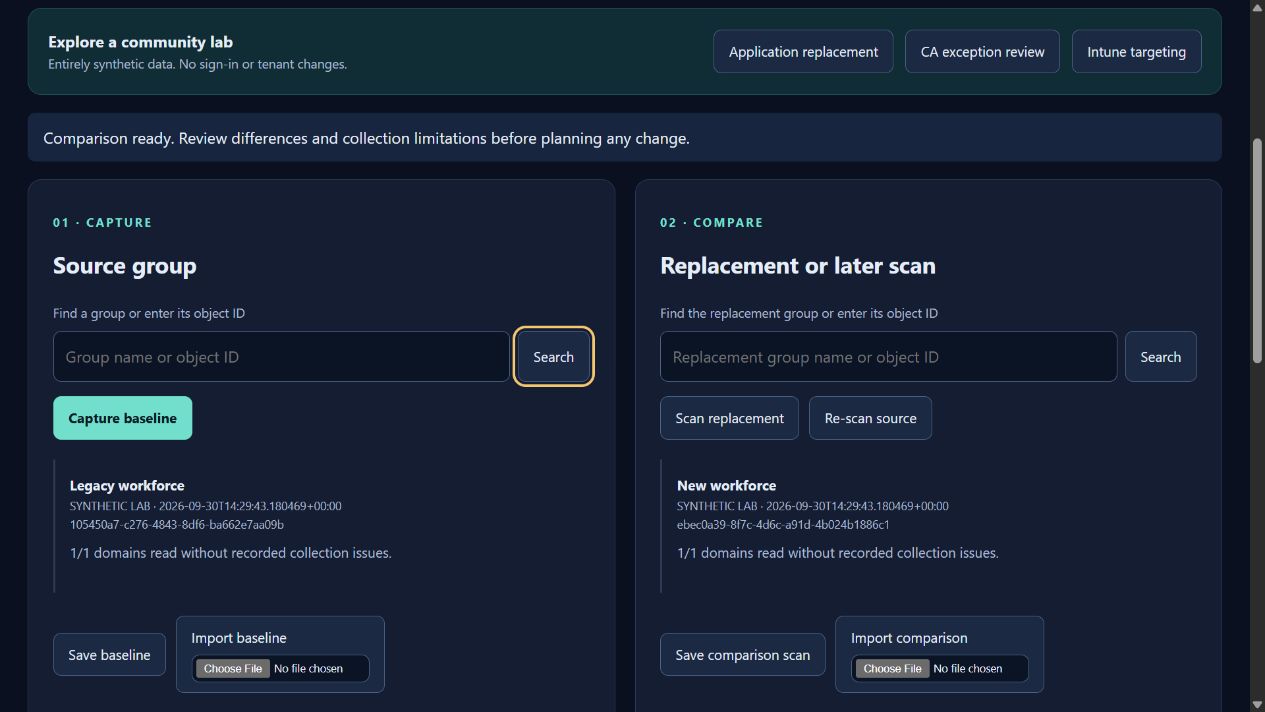
Enter a source name (at least two characters for lookup) or paste its exact UUID object ID. A name must be resolved through a search result before capture.
Searches group names using your signed-in session. Selecting a result fills the source ID.
Displays a group name and ID; select it to populate that side. Search alone does not capture evidence.
Freshly scans the source group and direct members. Replaces the baseline and clears the old comparison. Requires a valid ID and a signed-in session.
Enter or resolve the proposed replacement’s ID. The replacement must be a different group in the same tenant.
Searches candidate group names; choose one result to populate the comparison field.
Freshly scans the target group for comparison against the baseline. Select replacement mode for this pair.
Freshly scans the baseline group again and selects verification mode. It uses the captured baseline group ID, not a different replacement typed in the target field.
Choose Compare replacement assignments for different groups or Verify changes to the source group for a later scan of the same group. Changing mode clears the previous report.
Validates both signed snapshots and calculates the report for the selected mode. Identical snapshots, wrong groups, expired/modified files or incompatible versions are rejected.
Labs replace the current planner workspace with synthetic source/replacement evidence and immediately show a comparison. Save any live snapshots before choosing a lab. Demo and live snapshots cannot be mixed.
Each lab includes one deliberate settings change, a later scan with the reference removed and a later scan with visibility lost. This makes changed, removed and unknown reproducible without a tenant. Demo comparisons do not validate your live tenant.
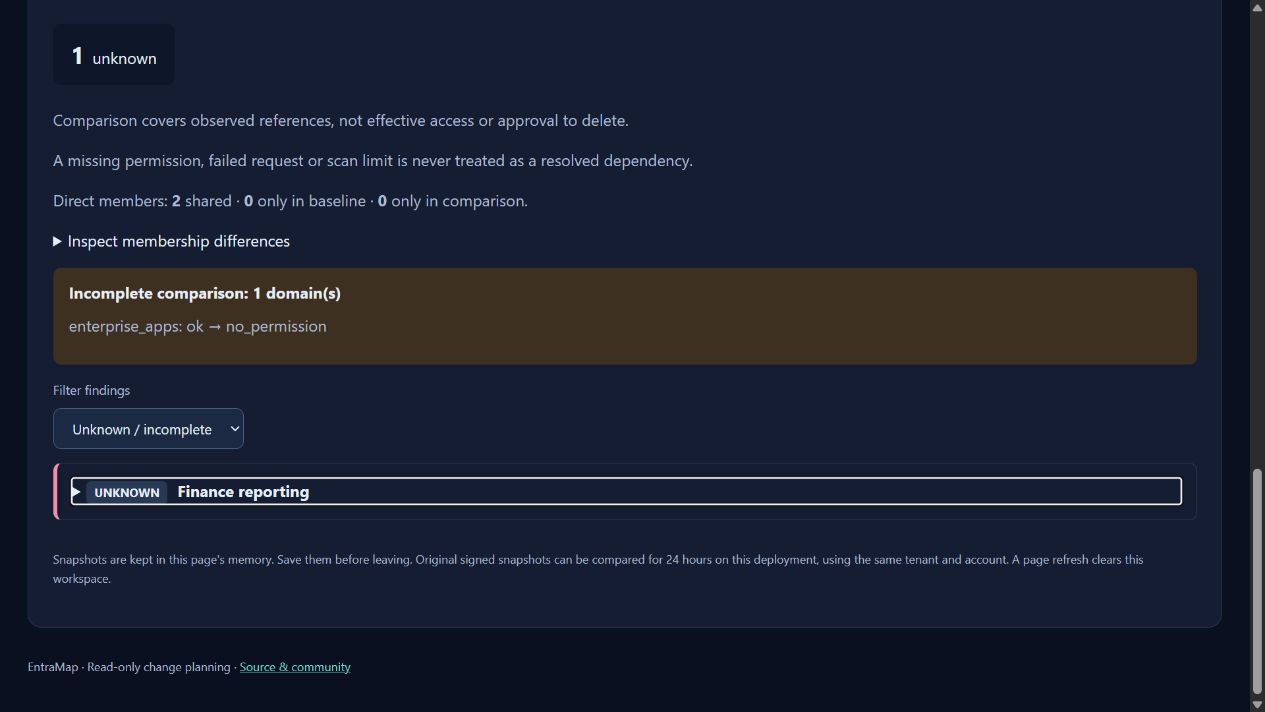
Loads two groups referencing the same enterprise app but different app roles. Expect changed.
Loads a policy that includes the source but excludes the comparison group. Expect changed because scope meaning differs.
Loads an app assignment that changes from required to available. Expect changed.
Uses the lab’s later scan of the source with its reference absent. Both domain reads succeed, so the result is removed.
Uses a later scan with incomplete domain access. The result is unknown, with a coverage limitation, even when no later finding was returned.
The report title identifies replacement readiness or changes to the source. Status counts count resource rows, not members or all assignments in the tenant. “Collected references reviewed” is not deletion approval.
Coverage limitations are listed even when neither scan produced findings. Direct member comparison is available only when both membership collections succeeded: Shared is an intersection count; Only before / Only after contain direct member IDs. Matching membership does not establish effective access.
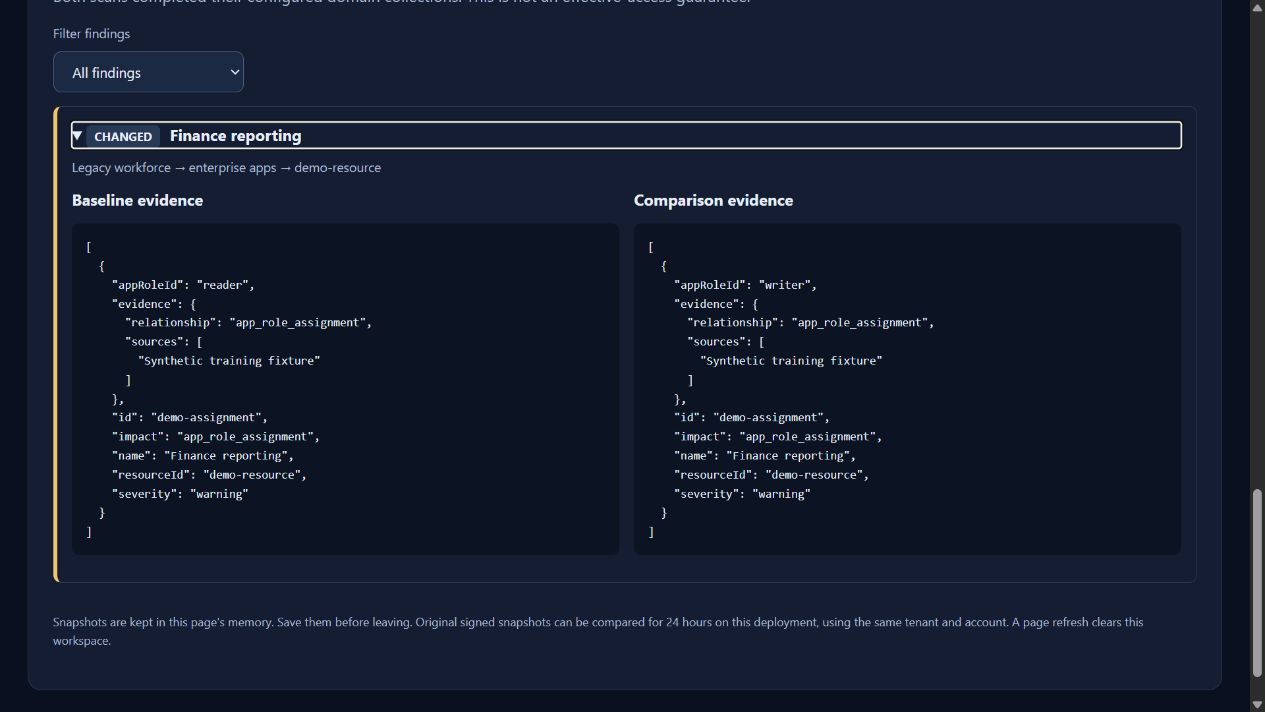
Filters displayed finding rows. Needs attention excludes equivalent and removed; unchanged remains visible. Unknown or incomplete shows unknown rows. Coverage limitations and overall counts remain visible.
Expands/collapses the source group → domain → resource path and baseline/comparison raw evidence. Inspect appRoleId, assignment intent, filters, state and scope where applicable.
Expands direct-member differences when available. This is ID-based evidence, not a transitive membership or effective-access computation.
| Result | Meaning | Mode |
|---|---|---|
| equivalent | Both readable scans contain matching collected semantic settings for this resource. | Replacement |
| missing | Source reference exists but target reference does not, with both domain reads complete. | Replacement |
| additional | Target has a reference absent from the source. Extra access still needs review. | Replacement |
| manual_review | This domain’s replacement semantics require human review; do not treat matching resource IDs as equivalence. | Replacement |
| changed | The same resource has different collected settings. Expand both sides. | Both |
| unknown | At least one domain collection is incomplete, unavailable or not scanned. Absence is not proven. | Both |
| removed | A source reference is absent in the later readable source scan. It does not prove a successful migration. | Verification |
| added | The later source scan contains a reference absent from baseline. | Verification |
| unchanged | The resource’s collected settings match across the two source observations. | Verification |
Snapshots live in page memory. Refreshing, closing or leaving the planner clears them. Save both sides explicitly before leaving. A saved snapshot contains group and tenant/account identifiers, direct member IDs, settings and collection evidence.
The server signs snapshots and validates their contents, issuing deployment, tenant and account when comparing/exporting. Acceptance lasts 24 hours. Import performs structural checks first; successful import alone does not establish server acceptance. Use the original unmodified JSON.
Each import is limited to 4 MB; the server request limit is 8 MB. The same scope and scan version are required. Verification requires a different snapshot ID and later capturedAt for the same group. An invalid import leaves the current slot intact.
A JSON dossier contains the exact before/after signed envelopes, but the whole dossier is not a snapshot import file. Graph JSON, map-compare JSON and pseudonymized reports are also not snapshot files. Save baseline/comparison is the supported way to obtain an importable file.
Downloads the original signed baseline envelope. Keep it intact for later verification using the same account and tenant within 24 hours.
Opens a JSON file picker for a saved original baseline. Invalid JSON or unsupported structure/size produces an error.
Downloads the signed replacement or later-source snapshot currently in the comparison slot.
Loads an original signed comparison snapshot into the comparison slot. Choose a compatible comparison mode before comparing.
Export timestamps and scan timestamps have different meanings. Graph exports describe the loaded view, impact exports can perform fresh collection, and Planner dossiers compare the exact selected snapshots. Keep coverage with the evidence when sharing.
The application triggers browser downloads; your browser determines whether they save automatically, prompt or are blocked. Check its downloads list. If a download is missing, allow downloads for the site and retry. A toast by itself does not verify that a file was saved.
Pseudonymize exports is available for Planner dossiers only. Other exports can include names, object IDs and tenant evidence. Pseudonymization removes raw identifiers/evidence, but contextual counts and statuses can still be sensitive to your organization.
Produces the calculated report plus exact before/after signed snapshots, unless pseudonymization is enabled. Useful for preserving the comparison inputs and machine-readable evidence.
Produces a readable table, coverage limitations, membership comparison and expandable assignment evidence. Open the saved file in a browser; expand evidence before printing if you need it on paper.
Omits raw snapshots, names, IDs, endpoints and evidence from subsequent Planner exports. Keeps counts, statuses, generic notes and anonymous Object labels. Does not alter the on-screen report or snapshot save files, and cannot be imported for verification.
| Export | Scope | Importable as Planner snapshot? |
|---|---|---|
| Graph JSON | Entire last loaded graph + timestamp/counts | No |
| Filtered view JSON | Visible graph + context/filter settings; faded nodes remain | No |
| Impact JSON / CSV / TXT / HTML | Group dependency analysis, not two-snapshot change history | No |
| Map Compare JSON / CSV | Standard vs impact projections of one group | No |
| Save baseline / Save comparison | Original signed single-scan envelope | Yes, subject to server validation |
| Planner JSON dossier | Report and exact two input envelopes | Not as a whole dossier |
| Planner HTML dossier | Human-readable change report | No |
| Pseudonymized dossier | Reduced report without raw evidence/snapshots | No |
Tutorials replace live map interactions with fixed synthetic objects while active. Progress is saved locally in the browser and completed levels receive a checkmark. You can choose any level; God Mode is a tutorial name, not elevated tenant access.
Basic (8 steps): User → search engin → open identity → linked group → copy ID → rail Reset → Fit → graph JSON.
Advanced (10 steps): Group → search tier0 → open group → Impact → impact export → impact graph → Compare maps → open impact from compare → compare JSON → compare CSV.
Expert (12 steps): Group → tier0 → open group → Details → Impact → impact map → unmanaged → non-compliant → reset focus → filtered export → compare → fit.
God Mode (13 steps): Device → win11 → open endpoint → copy ID → reset layout → App → portal → open app → copy ID → CA Policy → mfa → open policy → fit. The tutorial app is a synthetic teaching object; live App search is Intune app search.
The coach highlights the expected target and displays What this does / Why it matters. Waiting for action means the expected interaction has not completed. Tutorial exports may be simulated with a toast, so use live or planner-lab exports to test actual files.
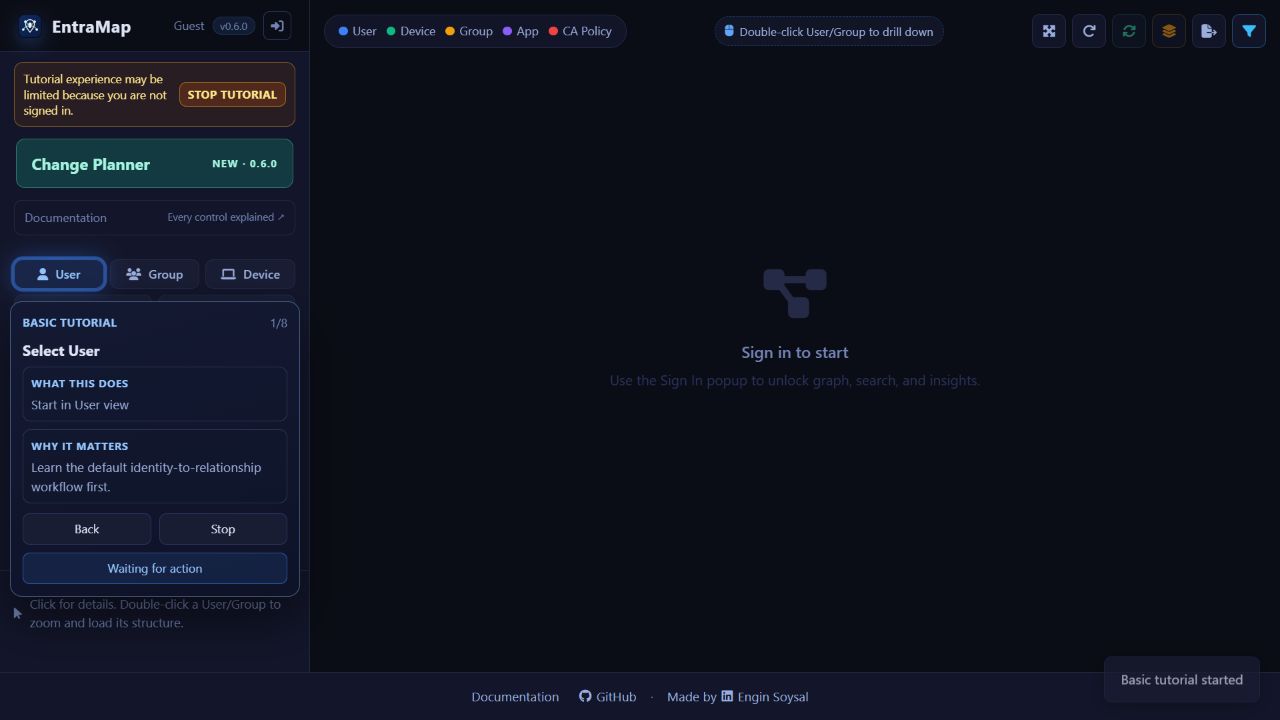
Hides the sign-in overlay and starts Basic with synthetic data. No tenant connection is needed.
Opens the level chooser. Choose a level to start/restart that walkthrough.
Starts this level from its first step using synthetic data. Completed level markers reflect local browser progress.
Starts this level from its first step using synthetic data. Completed level markers reflect local browser progress.
Starts this level from its first step using synthetic data. Completed level markers reflect local browser progress.
Starts this level from its first step using synthetic data. Completed level markers reflect local browser progress.
Moves to the previous coach step; disabled at the beginning. It does not reverse directory actions (tutorials make none).
Next advances a step when available. Action-driven steps disable this button and wait for the requested control interaction instead.
Brings the current target into view when it is outside the visible area. If the target is still loading, wait for it or restore the expected step context.
Ends the tutorial. A guest returns to the sign-in experience; signed-in users can return to live operations.
All 18 scopes below are requested as delegated permissions in this release. Consent is handled by Microsoft and your organization’s policy. EntraMap’s read-only Graph calls do not require you to grant write scopes.
Permission checks probe representative endpoints. OK means that probe succeeded; it does not guarantee every domain/sub-endpoint is available. Missing, Not licensed and Not applicable have different meanings. Domain-specific scan coverage remains the evidence for a particular scan.
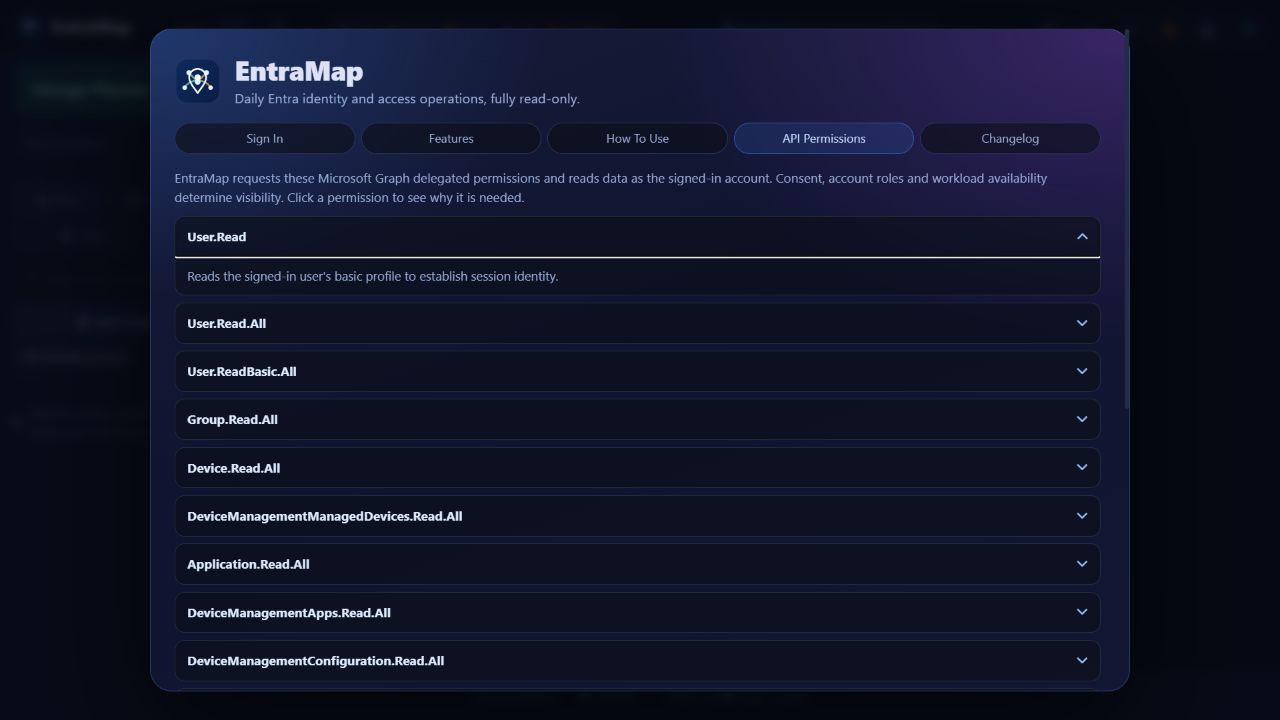
In API Permissions, expand/collapse each requested scope to read why it is used. This is explanatory content; it does not grant consent.
From API Permissions Incomplete, starts a fresh delegated consent request. Your organization may require an administrator to approve it. Re-scan after consent changes.
Closes the warning and remembers the skip preference locally. Features continue with available visibility; missing access is not fixed or treated as complete.
Clears local/session preferences and disconnects the EntraMap session from the permissions warning. It does not revoke tenant consent.
| Delegated scope | Purpose |
|---|---|
| User.Read | Reads the signed-in user's basic profile to establish session identity. |
| User.Read.All | Reads full user profiles tenant-wide for user lookup, pivoting, and enriched relationship details. |
| User.ReadBasic.All | Reads basic user info across the tenant for user search and mapping. |
| Group.Read.All | Reads groups, memberships, ownership, nesting, and group license relationships. |
| Device.Read.All | Reads tenant devices for device graph coverage and risk context. |
| DeviceManagementManagedDevices.Read.All | Reads Intune managed device records and posture details used in impact and compliance context. |
| Application.Read.All | Reads enterprise apps and service principals for app relationship mapping. |
| DeviceManagementApps.Read.All | Reads Intune app assignments to detect group dependencies before deletion. |
| DeviceManagementConfiguration.Read.All | Reads Intune device configurations, settings catalog, administrative templates, and compliance policies. |
| DeviceManagementServiceConfig.Read.All | Reads Autopilot profiles and enrollment configurations for group-impact dependency detection. |
| CloudPC.Read.All | Reads Windows 365 Cloud PC policies and assignments to surface cloud desktop dependencies. |
| Policy.Read.All | Reads Conditional Access policy definitions and targeting scope. |
| RoleManagement.Read.Directory | Reads Entra role assignments and privileged role relationships. |
| AdministrativeUnit.Read.All | Reads administrative units and scoped memberships to detect delegated admin boundaries. |
| EntitlementManagement.Read.All | Reads access package policies to find entitlement dependencies for groups. |
| Team.ReadBasic.All | Reads Teams metadata linked to Microsoft 365 groups. |
| Sites.Read.All | Reads SharePoint site metadata to detect workload dependencies. |
| Directory.Read.All | Reads broader directory objects including administrative unit scope references. |
A graph is a bounded exploration, not an exhaustive tenant inventory. A group impact scan covers the 20 implemented domains, subject to permission, workload, endpoint, paging and resource limits. Public tutorials show simplified coverage, not production completeness.
Ordinary Graph results may be cached for five minutes. Map reload and Planner captures request fresh reads. Freshness bypasses EntraMap’s cache, not Microsoft’s replication delay. Separate requests are observations over time, not an atomic transaction.
Statuses: ok means collection completed within the implemented scope; partial means some collection failed or was truncated; no_permission means access was denied; not_licensed means the API reported unavailable licensed functionality; error means collection failed; not_scanned is a comparison placeholder when a domain is absent. Read the accompanying reason and evidence. Workload non-applicability may be recorded separately from an ok domain status.
A reached collection limit or failed later page is incomplete coverage. Empty data from an unreadable domain is never evidence of removal. Resource 404s may mean no backing workload, but a failed collection is a limitation.
Enterprise app group assignments do not flow through nested group membership. Conditional Access needs actual sign-in context to evaluate. Intune has workload-specific applicability rules. Dynamic/synchronized groups require source-system review. Microsoft 365 group replacement does not migrate Teams, SharePoint, mailbox or Planner content.
| Configured scan limit in 0.6.0 | Maximum |
|---|---|
| Conditional Access policies | 400 |
| Intune apps | 1,200 |
| Intune policies per collection | 1,200 |
| Intune assignments per policy / per app | 100 |
| Teams channels / site drives / Planner plans | 200 per collection |
| Planner direct members | 10,000 |
| Snapshot file / comparison request | 4 MB / 8 MB |
| Snapshot acceptance window | 24 hours |
Start with the exact message, app version, selected mode and scan timestamps. Preserve originals before retrying. Do not post tokens, signed live snapshots or tenant evidence in a public issue.
| Symptom | Next action |
|---|---|
| State mismatch. Please try again. | Close the old callback. Start a new sign-in from https://entramap.com in the same browser. Do not replay an old callback. If persistent, the operator should check canonical REDIRECT_URI, stable secret and session storage across workers. |
| Popup blocked / sign-in never finishes | Allow the EntraMap sign-in popup; retry from the original page. If needed navigate directly to /auth/signin on the same origin. |
| Sign in required / session expired | Sign in again with the intended account. For Planner, save available snapshots before navigating; compare them using the original account/tenant within their validity window. |
| No results | Check object type and spelling, use at least two characters, and inspect permissions. App searches Intune apps. Planner also accepts a known group UUID. |
| No matching nodes visible | The current graph has no explicit false unmanaged/compliance flags matching that focus. Load another relevant object or reset focus. |
| Empty or very small impact map | Check severity/domain filters and press Reset in impact presets. Inspect coverage and the full report; no visible nodes does not establish no dependencies. |
| Missing / not licensed / partial / error | Read the domain reason. Consent, account roles, licenses and workload/API availability are independent. Restore visibility with your administrator, then capture fresh evidence. |
| Long scan / disabled controls | Wait for the in-progress scan. Large tenants can take minutes. Leaving or refreshing loses page-memory snapshots; save them before starting long work when possible. |
| Same group rejected in replacement mode | Choose a different target group, or use verification mode with a later source scan. |
| Verification requires a later scan | Use Re-scan source after baseline. Do not compare a snapshot against itself or place an earlier scan in the comparison slot. |
| Modified / invalid / expired snapshot | Use an original unedited Save baseline/comparison JSON from this deployment, younger than 24 hours. Capture fresh evidence after signing-key rotation or expiry. |
| Another account or tenant | Sign in with the account and tenant that captured the originals; do not edit IDs in the file. |
| Wrong scope/version or demo/live mix | Capture a compatible new pair. Keep both scans on the same scan version and data mode. |
| Import rejected / too large | Use a single original snapshot JSON under 4 MB. A dossier, graph export or pseudonymized file cannot be imported as a snapshot. |
| Export toast but no file | Check browser downloads and site download permissions. The browser may block generated downloads. Retry in a standard browser if an embedded browser does not save them. |
| Checklist complete but findings remain | Checklists track local review; they do not alter the tenant. Apply approved changes separately and collect fresh evidence. |
| Data differs after a recent change | Allow for Microsoft propagation and scans collected at different times. Compare timestamps, use fresh reload/re-scan, then validate in the workload’s admin tool. |
Live Graph requests run through the server using the signed-in session. Server-side sessions contain identity and an encrypted token-cache blob. A stable FLASK_SECRET_KEY is needed to keep sessions/signatures usable; operators must protect both the secret and session storage.
The browser holds the loaded map and planner workspace. Local storage holds tutorial progress, impact filter profile, group checklist state and the permission-warning skip preference. These are browser/origin-local, not shared workflow records. Disconnect clears local/session storage on the app’s origin.
Planner snapshots and dossiers saved to disk persist independently of sign-out. Treat them according to your organization’s handling rules. Pseudonymize applies only to Planner report exports, not saved snapshots, live UI, map exports or impact exports.
The documentation is public and performs no Graph requests. Screenshots here were captured from actual built-in synthetic tutorial/lab screens. No live tenant screenshots are published.
Back to top ↑The repository is the source of truth for deployment-specific settings. This page describes the 0.6.0 implementation. Use a stable HTTPS public origin with REDIRECT_URI ending /auth/callback, and configure the identical Web redirect URI in the Microsoft app registration.
For production, protect CLIENT_SECRET and FLASK_SECRET_KEY in your hosting configuration. Keep the Flask secret identical across workers. Filesystem sessions on ephemeral container storage can disappear during restart; multi-instance deployments need a shared session backend such as the supported Redis option.
The repository’s GitHub Actions validates Python regressions, frontend DOM tests and an HTTP smoke check before deploying main to Azure App Service. A successful deployment event can precede worker activation; verify public health/version and a fresh session after the new worker is serving.
Local development: install requirements.txt, set CLIENT_ID / CLIENT_SECRET / FLASK_SECRET_KEY and a local redirect URI, then run python app.py. Default port is 5000. Run python -m unittest discover -s tests -v and npm ci --prefix tests/frontend --ignore-scripts followed by npm test --prefix tests/frontend.
| Setting | Purpose / default |
|---|---|
| CLIENT_ID / CLIENT_SECRET | Microsoft confidential-client registration credentials; required by configuration validation. |
| REDIRECT_URI | Exact callback URL. HTTPS canonical entry redirects use its origin. |
| FLASK_SECRET_KEY | Stable session/signature/encryption secret; random fallback is unsuitable for persistent production sessions. |
| FLASK_DEBUG / PORT | Debug defaults false; local port defaults 5000. |
| SESSION_TYPE | filesystem by default; redis supported. |
| SESSION_FILE_DIR / REDIS_URL | Session directory defaults to OS temp/entramap_flask_session; Redis URL required for Redis mode. |
| SESSION_TTL_MINUTES | 60 by default; separate from map idle timer. |
| SESSION_COOKIE_NAME | entramap_session by default. |
| SESSION_COOKIE_SECURE | Defaults true for an HTTPS REDIRECT_URI; cookies are HttpOnly and SameSite=Lax. |
| APPLICATIONINSIGHTS_CONNECTION_STRING / APPINSIGHTS_INSTRUMENTATIONKEY | Optional telemetry configuration. Enable supported Azure Monitor dependencies to use it. |
| APPLICATIONINSIGHTS_ENABLE_LOGGING | Optional logging integration; defaults true. |
These are application endpoints, not a separately versioned public API service. Live reads require the browser’s EntraMap session. Never expose session cookies or tokens in scripts, URLs or issue reports. The public labs and docs work without tenant access.
Planner POST requests use JSON plus X-EntraMap-Request: planner. Comparison/export validate signed inputs and ownership for live data. A missing header or invalid envelope yields 400; live scans without authentication yield 401. The supported user workflow is the planner UI.
A signed snapshot envelope has data and signature. Data includes schemaVersion, scanVersion, id, tenantId, ownerId, demo, capturedAt, scope and result. Result contains group, summary, domains and direct membership. Preserve every field exactly. Editing data invalidates its signature.
| Method / route | Purpose |
|---|---|
| GET /docs, /docs/ | Public handbook. |
| GET /, /planner | Map/sign-in shell and planner workspace. |
| GET /api/health | Public health/version signal. |
| GET /api/me | Current signed-in identity context. |
| GET /api/search?type=…&q=… | Authenticated typed object lookup. |
| GET /api/map/{type}/{id} | User, group, device, app, enterprise_app or ca_policy map. |
| GET /api/map/group/{id}/impact or /compare | Group impact projection or standard/impact comparison. |
| GET /api/impact/group/{id} | Structured group impact evidence. Append /txt or /html for those report formats. |
| GET /api/details/{type}/{id} | Object metadata. |
| GET /api/photo/user/{id}, /api/photo/group/{id} | Authenticated object imagery when available. |
| GET /api/permission-check | Authenticated representative permission probes. |
| GET /api/debug/group-impact/{id} | Authenticated diagnostic summary for the group-impact implementation. |
| GET /api/planner/demo/{name} | Signed synthetic lab inputs: application, conditional-access, intune. |
| POST /api/planner/scan | Fresh group scan; body includes groupId. |
| POST /api/planner/compare | Body includes before/after signed envelopes and mode (replacement or verification). |
| POST /api/planner/export | Same pair/mode plus format (json or html) and pseudonymize boolean. |
| GET /auth/signin, /auth/callback, /auth/signout, /auth/disconnect | Session/authentication lifecycle; callbacks must come from a fresh initiated flow. |
Use Tab/Shift+Tab to reach focusable controls, Enter to activate buttons/links, Space for checkboxes and arrow keys for native select options. Escape in the map search clears results. Native disclosure rows in Planner open with Enter/Space. Graph canvas manipulation also uses pointer gestures.
Toolbar icons have hover titles; the reference above gives their names. The graph is a visual investigation tool: use the linked-object rail, detail text and exported evidence when a canvas relationship is hard to inspect. Do not rely on node color alone; read types, labels and scope text.
The signed-in relationship map includes a small Asteroids easter egg: enter Up Up Down Down Left Right Left Right B A, without long pauses. While signed out it shows a playful refusal instead. The game has no tenant permissions or Graph actions.
Left/Right rotates, Up thrusts and Space shoots. The panel shows score, lives and a boss indicator when applicable.
Closes the mini-game and returns the panel to ordinary map use.
Chapters and controls have stable fragment links so you can share a precise explanation. The complete handbook is server-rendered and readable without JavaScript. Search, automatic index sorting and the print button use JavaScript; browser Find and Print remain available without it.
Type words to filter chapters. All words must occur in a chapter; labels, body text and reference tables are searched case-insensitively. A matching chapter stays complete for context.
Clears the query, restores all chapters and returns focus to the search field.
Navigates to a chapter or specific control. Opening an indexed link restores its chapter if search had hidden it.
Jumps to the full control index. Select any entry for its explanation.
Opens the actual screenshot image in a separate browser tab. Browser zoom can enlarge details; return to the guide using its original tab.
Opens the browser print dialog. Print styling includes every chapter even if a search is active. Choose a printer or Save as PDF in your browser.
Returns to the main content start; the keyboard-only skip link bypasses navigation.